Keep Full DICOM Detail When Storing Medical Images Online for Patients
Get full DICOM exports, store medical images online in a HIPAA ready account, and send passworded, expiring links. Quick upload fixes included.
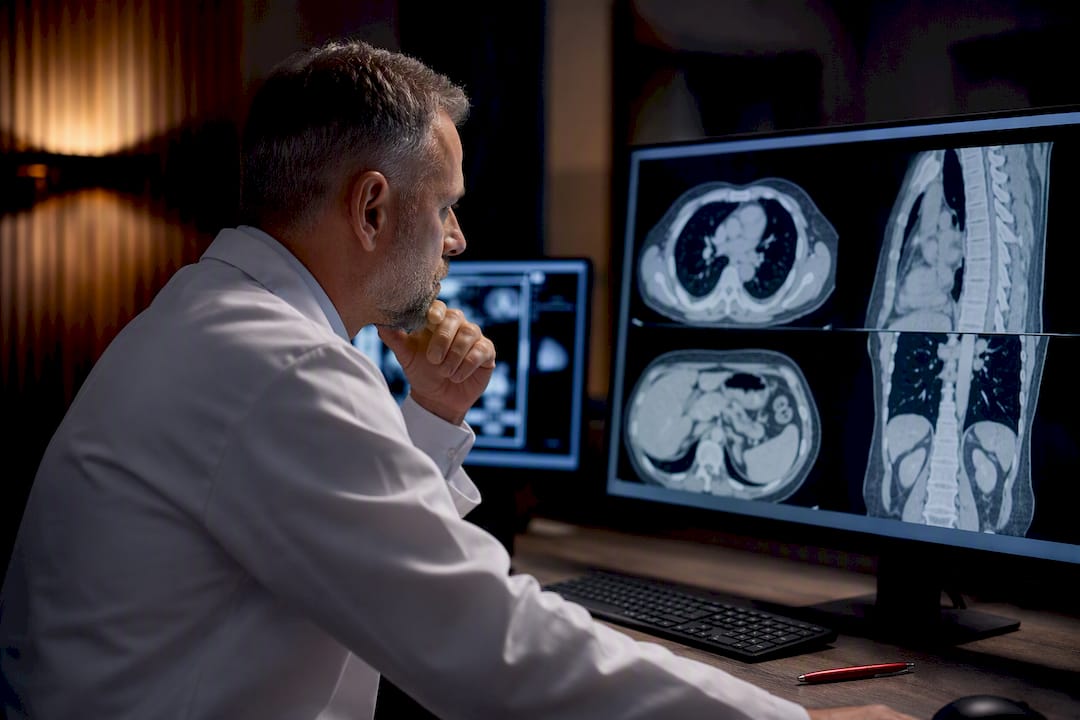
Keep Full DICOM Detail When Storing Medical Images Online for Patients
Ask your imaging provider for a DICOM export or a portal link first. If you already have the files on a disc or drive, upload the complete study, not just a JPG or PDF, to a HIPAA-ready patient record platform, then share access through a passworded link instead of email. DICOM preserves the diagnostic detail your next doctor will actually need. That single choice, DICOM over image files, is what separates useful storage from a folder of pictures nobody can read.
TL;DR:
- Always request full DICOM files instead of JPEGs or PDFs, as they retain critical metadata needed for accurate diagnosis and comparison.
- Use secure, HIPAA-compliant platforms to store and share images, and generate password-protected links with expiration dates for short-term needs.
- Copy images from discs or drives to your computer before uploading, and verify the upload by checking file counts or study summaries to ensure completeness.
- The most common upload failures are due to corrupted files, expired links, or incompatible formats, which require re-copying, requesting a new link, or resending in proper DICOM format.
- Keep your scans in a permanent, accessible digital storage service to prevent loss over time, especially before urgent needs or changing providers.
Table of Contents
- How Do I Get My Medical Images From a Hospital or Clinic?
- File Formats and DICOM Basics: What to Keep
- What Are the Best Ways to Upload Medical Images Online?
- How Do You Share Medical Images Securely With a Doctor?
- Why Won’t My Medical Images Upload or Open?
- How a HIPAA-Ready Platform Solves the Storage Problem
- What Patients Get Wrong About Storing Medical Images
- Store Your Scans Where They’ll Actually Be Useful Later
- Sources
- FAQ
How Do I Get My Medical Images From a Hospital or Clinic?
You have a legal right to your own imaging. Under HIPAA, patients can request copies of their medical records, and that includes scans, not just written reports, so don’t let a front-desk staffer talk you out of asking for the full digital file.
Most facilities offer one of three request paths:
- Patient portal export. Many hospitals let you download studies directly from your existing portal account.
- PowerShare-style sharing services. Some radiology departments use RSNA Image Share or similar Nuance PowerShare workflows, which let you or your new doctor pull the study through a secure, account-based link.
- Formal release of information (ROI) request. For older studies or facilities without self-service tools, you’ll fill out a written or online ROI form.
Always specify that you want the full DICOM study, not a JPG or PDF summary. A PDF might satisfy a quick look but strips out the metadata a radiologist needs for comparison. Expect at least one business day for facility processing, and ask directly whether your access link is permanent or set to expire. If the facility hands you a CD, DVD, or USB drive, and your laptop has no disc drive, a cheap external USB CD reader solves that problem in minutes. Copy the files to your computer before doing anything else with them.
File Formats and DICOM Basics: What to Keep
DICOM is the standard format radiology departments use to store and send imaging data, and it carries more than pixels. Each file bundles metadata: scan settings, orientation, patient identifiers, and technical parameters a radiologist relies on for accurate comparison. Strip that out and you’re left with a picture that looks fine but tells a clinician far less.
The most common mistake happens at the front desk: a well-meaning staffer exports your scan as a JPG or PDF because it’s easier to hand over. That file will open on any phone, but it loses the fidelity a specialist needs for diagnosis. A genuine DICOM export usually arrives as a folder full of files with no visible extension, sometimes labeled by series number rather than a familiar name.
When preparing files for upload:
- Don’t rename individual files inside a DICOM folder.
- Keep the original folder structure intact rather than pulling files out one by one.
- Zip the folder only if your upload tool explicitly supports zipped studies.
Pro Tip: If you’re not sure which files in a folder matter, upload the entire study folder rather than picking and choosing. Clinicians can filter out what they don’t need, but they can’t use images you left behind.
What Are the Best Ways to Upload Medical Images Online?
Three distinct upload routes cover almost every situation a patient runs into, and each fits a different need.
Hospital and clinic uploader tools connect directly to the facility’s PACS or EHR system. These work well when you’re sending images back to the same health system or a referring specialist within their network, but they often require creating a facility-specific account, and that account may not do you any good once you switch providers.
Patient-facing DICOM storage services build a persistent account you control, independent of any single hospital. These let you generate passworded, shareable links for a new doctor and keep the study on hand for years, which matters if you need to compare scans over time.
Free browser-based viewers solve a narrower problem: you need to look at a scan once, maybe for a second opinion, and don’t want to create an account. They work well for that single purpose, but most don’t retain your study afterward, so don’t treat one as your long-term archive.
For the actual upload from a CD, USB drive, or downloaded folder, this order works reliably:
- Copy the files from the disc or drive onto your computer first, rather than uploading directly from the disc.
- Open the uploader in Chrome, Edge, or Firefox, since older browsers frequently fail on large medical files.
- Select the full study folder rather than individual images.
- Confirm the upload completed by checking the file count or study summary the platform shows you.
- Verify you can reopen the study before deleting the local copy.
How Do You Share Medical Images Securely With a Doctor?
Any service holding your scans should meet a minimum bar before you trust it: HIPAA-ready infrastructure, encryption both at rest and while files move, and real account authentication, not just a shared link anyone can guess.
Beyond that baseline, sharing practices matter as much as storage:
- Use password-protected links with a built-in expiration date for one-time sends to a specialist you won’t see again.
- Reserve full account access for a primary care doctor or specialist managing ongoing care.
- Set view-only permissions whenever the recipient doesn’t need to download or forward the file.
- Keep one encrypted local copy of critical studies as a backup, and open it periodically to confirm it still loads correctly.
A password-protected link with an expiration date gives a one-time recipient exactly the access they need and nothing more. That balance, convenience for short-term sharing, full account control for ongoing care, is worth building into your routine from the start rather than figuring out after a scan gets forwarded somewhere you didn’t intend.
Why Won’t My Medical Images Upload or Open?
Most upload failures trace back to one of three causes, and each has a fast fix.
- Upload stalls past 10 minutes. This usually points to a corrupted file rather than a slow connection. Try a different browser first, then re-copy the files from the original disc before giving up on the upload entirely.
- A provider’s sharing link has expired. Request a permanent export instead of a temporary access link, then upload that export to your own account so you’re not depending on the facility’s server again.
- Files won’t open or display. Try a browser-based DICOM viewer to confirm the files are intact. If they still won’t render, ask the provider to resend the study in standard DICOM format rather than whatever export they defaulted to.
Before attempting any disc upload, do a quick integrity check: open the disc on your computer and confirm you see a folder structure with multiple files, not a single suspicious icon. A disc that shows only one file, or won’t mount at all, needs a replacement from the facility before you waste time troubleshooting an upload that was doomed from the start.
How a HIPAA-Ready Platform Solves the Storage Problem
Everything above points to one conclusion: patients need persistent, secure storage they control, not a patchwork of hospital portals and expiring links. Medfiles was built around exactly that gap.
- HIPAA-ready infrastructure with end-to-end encryption covers the security baseline every service should meet.
- Multi-profile management lets you store records for your whole family under one account, not scattered across separate portal logins.
- Sharing controls give you passworded, permission-based links as recommended here, rather than an all-or-nothing email attachment.
- Emergency access means your imaging history travels with you, useful when you’re at a new specialist or traveling and need records fast.
The features map directly onto the workflow this guide walks through: obtain the study, store it somewhere permanent, share it on your terms with the help of the eSpiral Case Study | MedScrub — AI in the chart, PHI never in the cloud approach.
What Patients Get Wrong About Storing Medical Images
The biggest mistake isn’t security. It’s timing. Most patients wait until they need a scan urgently, a second opinion, a new specialist, a move across the country, before they think about where their imaging actually lives. By then they’re chasing down a hospital that may have purged the file or a portal login they forgot years ago.
The conventional advice treats this as a one-time task: get the disc, hand it to the new doctor, done. That works until you need the same scan again in six months for comparison, and the disc is gone or the portal access expired. Permanence matters more than most guides admit.
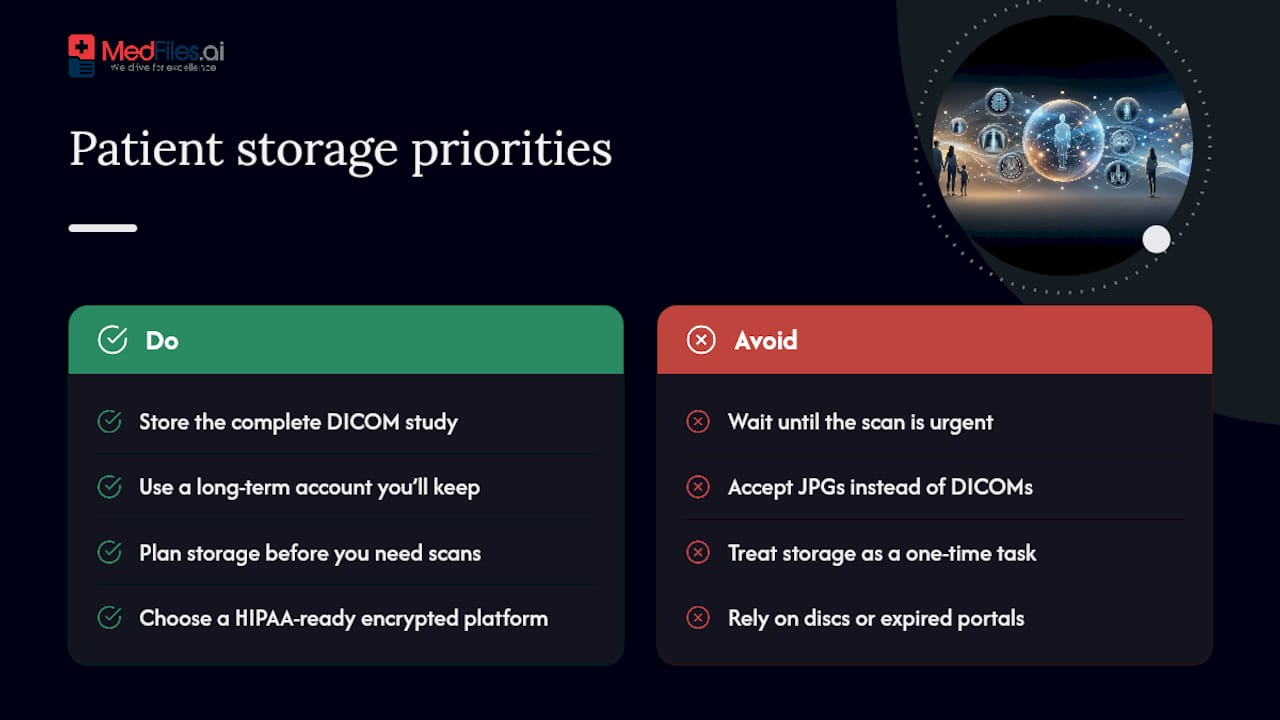
Security gets more attention than it deserves relative to organization. A HIPAA-ready platform with encryption is table stakes at this point. What actually determines whether your imaging helps you later is whether you kept the full DICOM study, not a JPG, and whether it’s sitting in an account you’ll still have access to in five years.
Prioritize getting the complete file first. Worry about the sharing mechanics second. A perfectly encrypted JPG is still a JPG.
— Team
Store Your Scans Where They’ll Actually Be Useful Later
Once you’ve pulled your DICOM study from the hospital, the next decision is where it lives long term. A folder on your laptop isn’t backed up. A hospital portal isn’t yours to keep. Medfiles gives you DICOM-compatible, HIPAA-ready storage that stays with you across providers, plus family profiles so you’re not juggling five separate logins for parents and kids.
Sharing works the same way it should: passworded links with expiration dates for one-time sends, full account access for your ongoing care team. Check the secure sharing features to see exactly how permission controls work before you commit. Consider starting a free trial based on available services and upload your first study today.
This article is general information, not a substitute for advice from a qualified doctor. Consult a qualified healthcare professional about your own circumstances before acting on anything here.
Sources
- Online Access to Medical Images - Samaritan Health
- HHS — Do individuals have a right under HIPAA to get copies of their records?
- A Step-by-Step Patient Guide to Upload Medical Images to Cleveland Clinic
- DICOM Standard
FAQ
Can I Request My Medical Images for Free?
Under HIPAA, you have the right to a copy of your medical records, though some facilities charge a small fee for physical media or staff time to process a release of information request.
Should I Ask for JPG or DICOM Files?
Always ask for DICOM. JPG and PDF exports lose the metadata and image fidelity a radiologist needs for accurate comparison against future scans.
How Long Does It Take to Get Digital Access to My Scans?
Expect at least one business day for a facility to process a formal image request, longer for older studies pulled from archive.
Is It Safe to Store Medical Images in the Cloud?
It’s safe when the platform is HIPAA-ready, encrypts data at rest and in transit, and requires real account authentication. Platforms like Medfiles build storage around that exact baseline.
What Do I Do If My Upload Keeps Failing?
Suspect a corrupted file if the upload stalls past 10 minutes; try a different browser or re-copy the files from the original disc before attempting again.